
You are three hours into your IoT lab project, the deadline hits tomorrow, and your ESP32 just refuses to join the Wi-Fi. The Serial Monitor spits out “Connecting…” in an endless loop, the chip resets itself every few seconds, and the panic starts setting in. If that sounds familiar, you are not alone, the ESP32 Wi-Fi headache is probably the single most-searched problem in any microcontroller course.
This guide skips the generic “did you check your password” advice and walks through the actual culprits, the ones that live in forum threads at 2 AM, in GitHub issues that never get a final answer, and in the quiet horror of realising your router is the problem, not your code.
Table of Contents
Where the Hours Actually Disappear
Before jumping into fixes, it helps to see where ESP32 students and makers actually lose time. The breakdown below is pulled from hundreds of community threads on the official ESP32 forum, Espressif’s GitHub issues, and the Arduino forum, and the pattern is surprisingly consistent.
Notice that nearly a third of all reported failures come from a single cause ,the 2.4 GHz versus 5 GHz band mismatch. The second-largest slice is “wrong credentials,” which sounds silly until you realise how many of those are invisible whitespace characters from a copy-paste. Let’s work through them in order.
Fix 1: The 5 GHz Trap
The single biggest killer, the classic ESP32 does not support 5 GHz Wi-Fi. Not the WROOM-32, not the WROVER, not the first-generation DevKitC. Only the newer ESP32-C5 and ESP32-C6 touch the 5 GHz band, and even those need recent core support.
Here is the sneaky part, modern routers broadcast both bands under a single SSID using something called band steering. Your phone silently jumps between 2.4 GHz and 5 GHz, so you swear the Wi-Fi is working. The ESP32, meanwhile, scans the 2.4 GHz spectrum and finds nothing it can talk to.
How to fix it
- Log into your router admin page, usually 192.168.1.1 or 192.168.0.1.
- Split the SSIDs into two names, e.g. “HomeWiFi-2G” and “HomeWiFi-5G”.
- Point WiFi.begin() at the 2.4 GHz name.
- If you are in a hostel or shared PG where you cannot change router settings, use your phone’s hotspot set to 2.4 GHz-only mode as a temporary workaround.
Fix 2: The Credential Trap
Everyone tells you to “check the password.” Nobody tells you what to actually look for. The real culprits are almost never a typo, they are invisible characters and case-sensitivity issues.
- Leading or trailing spaces that sneak in when you paste from WhatsApp or email.
- Mixed-case SSIDs — “MyNetwork” and “mynetwork” are two different networks to the ESP32.
- Special characters like &, #, or $ that some string encodings mangle.
- Hidden SSIDs — these need a WiFi.begin() overload with the hidden=true flag, otherwise the chip just gives up.
Pro tip — before touching your Arduino code, type both the SSID and password into your phone’s Wi-Fi settings by hand. If your phone connects, your credentials are fine and the problem lives elsewhere. If your phone fails too, you have just saved yourself an hour of pointless code debugging.
Fix 3: The Infamous Brownout
This is the fix nobody warns beginners about, and it is responsible for an alarming number of “my ESP32 is dead” posts. The ESP32’s Wi-Fi radio draws bursts of up to 240 to 300 milliamps during transmission. If you are powering the board from a flaky USB cable, a laptop USB port, or a 500 mA phone charger, the voltage dips below 3.0 V during that burst and the chip either resets or fails authentication.
Symptoms to watch for
- The board connects fine in setup(), then disconnects the moment loop() starts doing work.
- Random reboots with “Brownout detector was triggered” printed to Serial.
- AUTH_EXPIRE errors that appear and disappear for no reason.
- The board works perfectly on a mobile hotspot but refuses the home router.
The actual fix
- Swap your USB cable for a short, thick one, the thin white Apple-style cables are notorious for voltage drop.
- Power the ESP32 from a dedicated 5 V / 2 A supply, not a laptop USB port.
- For projects with motors, servos, or LED strips, give the ESP32 its own regulator and share the ground rail.
- Add a 10 microfarad capacitor between the 3.3 V pin and ground to smooth out the transmit spikes.
Fix 4: The Missing WiFi.mode(WIFI_STA) Line
By default, the ESP32 boots in AP+STA mode — it tries to act as both an access point and a station at the same time. For plain Wi-Fi client projects, this wastes resources and sometimes trips up the handshake on older board cores.
Add this one line before WiFi.begin():
WiFi.mode(WIFI_STA);
That’s it. A single line — on older Arduino-ESP32 cores, this alone resolves a surprising number of mysterious “cannot connect” failures.
Fix 5: The AUTH_EXPIRE Mystery (C3 Super Mini Users, Read This)
If you are using an ESP32-C3 Super Mini, and judging by how popular it is in college electronics labs, you probably are, there is a very good chance you have seen this exact message in your Serial Monitor:
[W][WiFiGeneric.cpp:873] _eventCallback(): Reason: 2 – AUTH_EXPIRE
The ESP32-C3’s RF front end is more sensitive to transmit overshoot. Stock firmware sometimes pushes the output power too hard, and the router rejects the authentication packet. The community-verified fix is almost comically simple:
WiFi.setTxPower(WIFI_POWER_8_5dBm);
Drop the transmit power from the default to 8.5 dBm, and the handshake completes cleanly. The router stops throwing authentication errors. It is weird, it is undocumented, and it works every single time on the C3 Super Mini. Add this line right after WiFi.begin() and move on with your project.
Fix 6: The Sleep-Mode Drop
The ESP32 enables a power-saving Wi-Fi sleep mode by default. On many routers, especially mesh systems like Eero, Google Nest Wi-Fi, and some TP-Link Deco setups, the sleep state desynchronises the association. The result? Your ESP32 drops off the network every few minutes, then struggles to reconnect.
Disable it with one line:
WiFi.setSleep(false);
Yes, the board will burn slightly more power, roughly 20 to 30 mA extra on average. For a battery-powered sensor, that is a trade-off worth thinking about. For a project running on a wall adapter and needing 24/7 uptime, it is the right call.
Fix 7: Measure Your Signal Strength (RSSI)
Most people eyeball the distance from the router and shrug. Don’t. Measure the signal strength with one line of code and let the numbers tell you the truth.
Serial.println(WiFi.RSSI());
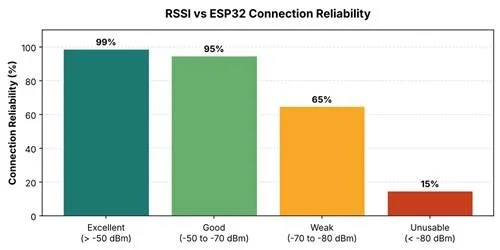
RSSI is reported in dBm, and the number is always negative. The closer to zero, the stronger the signal. Here is roughly how the ESP32 behaves across the range:
The ESP32’s PCB antenna is smaller than the one in your phone. If your phone shows two bars, the ESP32 is probably hovering around -80 dBm and struggling to stay connected. Move it closer to the router, or bolt on an external antenna via the IPEX connector if your board has one.
Fix 8: The Router-Side Gremlins Nobody Mentions
Some router settings quietly destroy ESP32 connectivity in ways you would never think to look for. If you have ticked off every other fix and still have no luck, log into your router and check the following:
| Router Setting | Impact on ESP32 | Recommended Value |
| Security mode | WPA3-only rejects legacy ESP32 firmware | WPA2 or WPA2/WPA3 mixed |
| Band steering | Forces ESP32 toward 5 GHz, which it cannot see | Disabled, or split SSIDs |
| 802.11k / BSS Transition | Confuses ESP32’s simple Wi-Fi stack | Disabled |
| Channel width | 80 MHz bonding on 2.4 GHz breaks the chip | 20 MHz, channels 1, 6, or 11 |
| MAC filtering | Silently rejects the ESP32 even with right password | Add ESP32 MAC to whitelist |
| Guest network isolation | Connects, but nothing on the LAN can reach it | Disable isolation |
The Error Code Cheat Sheet
When the Serial Monitor throws a numeric reason code at you, here is what the common ones actually mean. Keep this table handy — it saves a lot of guessing.
| Code | Label | What It Really Means |
| 2 | AUTH_EXPIRE | Router rejected auth — try setTxPower() or check WPA mode |
| 3 | AUTH_LEAVE | ESP32 left the network voluntarily — usually from a code bug |
| 4 | ASSOC_EXPIRE | Association dropped — signal or power problem |
| 15 | 4WAY_HANDSHAKE_TIMEOUT | WPA handshake failed — wrong password or band steering |
| 200 | BEACON_TIMEOUT | Lost sight of the router — signal or router restart |
| 201 | NO_AP_FOUND | SSID not visible — wrong band or hidden SSID flag missing |
| 202 | AUTH_FAIL | Password is definitely wrong — re-enter it manually |
| 203 | ASSOC_FAIL | Router actively refused the connection — check MAC filtering |
Fix 9: Write Reconnection Logic Like an Adult
Nearly every beginner tutorial tells you to write a blocking loop like while (WiFi.status() != WL_CONNECTED). Don’t. It freezes the chip while trying, blocks everything else, and offers zero fallback when the router momentarily hiccups.
Set up auto-reconnect once, then handle disconnects non-blockingly:
WiFi.mode(WIFI_STA);
WiFi.setAutoReconnect(true);
WiFi.persistent(true);
WiFi.begin(ssid, password);
unsigned long start = millis();
while (WiFi.status() != WL_CONNECTED && millis() – start < 15000) {
delay(250);
}
Then, inside loop(), check WiFi.status() on a timer, every 30 seconds is plenty, and call WiFi.reconnect() only when needed. Your project stays responsive, and transient drops heal themselves without a reboot.
Where to Dig Deeper
If you want to go beyond the basics, two resources are worth bookmarking. The official Arduino WiFi library reference covers every function signature, status code, and edge case — far more thoroughly than any blog post can. For firmware bugs, feature requests, and the latest fixes, the Espressif Arduino-ESP32 GitHub repository is where the community actually lives. Scrolling through recent issues often tells you whether your problem is a real bug or just a configuration mistake.
The Order to Try Fixes In
If you only remember one thing from this article, let it be this checklist. Work through it top to bottom — nine times out of ten, the first three steps fix the problem:
- Confirm you are connecting to a 2.4 GHz SSID, not a 5 GHz one.
- Re-type your credentials by hand, no copy-paste from chat apps.
- Swap your USB cable and use a proper 5 V / 2 A power supply.
- Add WiFi.mode(WIFI_STA) before WiFi.begin().
- Add WiFi.setSleep(false) to kill the sleep-mode drops.
- For the ESP32-C3 Super Mini, add WiFi.setTxPower(WIFI_POWER_8_5dBm).
- Print WiFi.RSSI() and confirm signal strength above -75 dBm.
- Check router security mode — switch WPA3-only to WPA2/WPA3 mixed.
- Write non-blocking reconnection logic with auto-reconnect enabled.
If none of the above work, flash the stock Wi-Fi Scan sketch from the Arduino IDE examples. If it still cannot see your router’s 2.4 GHz SSID in the scan, the board’s antenna trace or RF front end is physically damaged, swap the board and move on. Life is too short to debug dead silicon.
Good luck with your project, and remember, every embedded engineer who has ever shipped a Wi-Fi product has rage-stared at an ESP32 at 3 AM. You are not the first, you are not the last, and the chip is almost always innocent.
Have any thoughts?
Share your reaction or leave a quick response — we’d love to hear what you think!
-
 0
- 0
- 0



